演示如何使用圖形視圖框架。
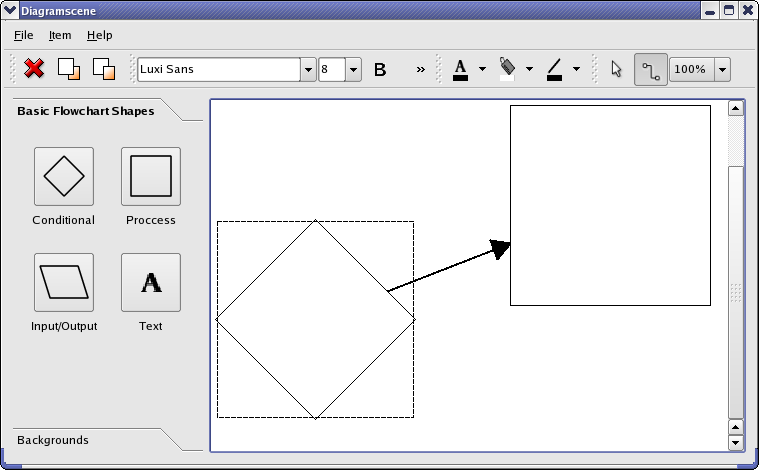
簡圖場景範例是可以在其中創建流程圖簡圖的應用程序。添加流程圖形狀和文本,並通過箭頭連接形狀 (如上圖所示) 是可能的。形狀、箭頭及文本可以給定不同顔色,且改變文本字體、文本樣式及文本下劃綫也是可能的。
Qt 圖形視圖框架是為管理和顯示自定義 2D 圖形項而設計的。框架的主要類 QGraphicsItem , QGraphicsScene and QGraphicsView 。圖形場景管理項和為它們提供錶麵。 QGraphicsView 是用於在屏幕上渲染場景的 Widget。見 圖形視圖框架 瞭解框架的更詳細描述。
此範例展示如何創建這種自定義圖形場景和項,通過實現類繼承 QGraphicsScene and QGraphicsItem .
尤其,展示如何:
範例由以下類組成:
MainWindow
創建 Widget 並顯示它們在
QMainWindow
。它還管理 Widget 和圖形場景,視圖和項之間的交互。
DiagramItem
繼承
QGraphicsPolygonItem
和錶示流程圖形狀。
TextDiagramItem
繼承
QGraphicsTextItem
和錶示簡圖文本項。類添加對采用鼠標移動項的支持,但不支持通過
QGraphicsTextItem
.
Arrow
繼承
QGraphicsLineItem
且是連接兩 DiagramItem 的箭頭。
DiagramScene
繼承 QGraphicsDiagramScene 和提供支持為
DiagramItem
,
Arrow
and
DiagramTextItem
(除已支持的處理通過
QGraphicsScene
).
class MainWindow : public QMainWindow
{
    Q_OBJECT
public:
   MainWindow();
private slots:
    void backgroundButtonGroupClicked(QAbstractButton *button);
    void buttonGroupClicked(int id);
    void deleteItem();
    void pointerGroupClicked(int id);
    void bringToFront();
    void sendToBack();
    void itemInserted(DiagramItem *item);
    void textInserted(QGraphicsTextItem *item);
    void currentFontChanged(const QFont &font);
    void fontSizeChanged(const QString &size);
    void sceneScaleChanged(const QString &scale);
    void textColorChanged();
    void itemColorChanged();
    void lineColorChanged();
    void textButtonTriggered();
    void fillButtonTriggered();
    void lineButtonTriggered();
    void handleFontChange();
    void itemSelected(QGraphicsItem *item);
    void about();
private:
    void createToolBox();
    void createActions();
    void createMenus();
    void createToolbars();
    QWidget *createBackgroundCellWidget(const QString &text,
                                        const QString &image);
    QWidget *createCellWidget(const QString &text,
                              DiagramItem::DiagramType type);
    QMenu *createColorMenu(const char *slot, QColor defaultColor);
    QIcon createColorToolButtonIcon(const QString &image, QColor color);
    QIcon createColorIcon(QColor color);
    DiagramScene *scene;
    QGraphicsView *view;
    QAction *exitAction;
    QAction *addAction;
    QAction *deleteAction;
    QAction *toFrontAction;
    QAction *sendBackAction;
    QAction *aboutAction;
    QMenu *fileMenu;
    QMenu *itemMenu;
    QMenu *aboutMenu;
    QToolBar *textToolBar;
    QToolBar *editToolBar;
    QToolBar *colorToolBar;
    QToolBar *pointerToolbar;
    QComboBox *sceneScaleCombo;
    QComboBox *itemColorCombo;
    QComboBox *textColorCombo;
    QComboBox *fontSizeCombo;
    QFontComboBox *fontCombo;
    QToolBox *toolBox;
    QButtonGroup *buttonGroup;
    QButtonGroup *pointerTypeGroup;
    QButtonGroup *backgroundButtonGroup;
    QToolButton *fontColorToolButton;
    QToolButton *fillColorToolButton;
    QToolButton *lineColorToolButton;
    QAction *boldAction;
    QAction *underlineAction;
    QAction *italicAction;
    QAction *textAction;
    QAction *fillAction;
    QAction *lineAction;
};
The
MainWindow
類創建和布置 Widget 在
QMainWindow
。類將輸入從小部件轉發到 DiagramScene。它還會更新其 Widget,當簡圖場景的文本項改變,或將簡圖項或簡圖文本項插入場景時。
類還從場景刪除項並處理 z 次序 (決定當項彼此重疊時繪製項的次序)。
從查看構造函數開始:
MainWindow::MainWindow()
{
    createActions();
    createToolBox();
    createMenus();
    scene = new DiagramScene(itemMenu, this);
    scene->setSceneRect(QRectF(0, 0, 5000, 5000));
    connect(scene, SIGNAL(itemInserted(DiagramItem*)),
            this, SLOT(itemInserted(DiagramItem*)));
    connect(scene, SIGNAL(textInserted(QGraphicsTextItem*)),
            this, SLOT(textInserted(QGraphicsTextItem*)));
    connect(scene, SIGNAL(itemSelected(QGraphicsItem*)),
            this, SLOT(itemSelected(QGraphicsItem*)));
    createToolbars();
    QHBoxLayout *layout = new QHBoxLayout;
    layout->addWidget(toolBox);
    view = new QGraphicsView(scene);
    layout->addWidget(view);
    QWidget *widget = new QWidget;
    widget->setLayout(layout);
    setCentralWidget(widget);
    setWindowTitle(tr("Diagramscene"));
    setUnifiedTitleAndToolBarOnMac(true);
}
In the constructor we call methods to create the widgets and layouts of the example before we create the diagram scene. The toolbars must be created after the scene as they connect to its signals. We then lay the widgets out in the window.
We connect to the
itemInserted()
and
textInserted()
slots of the diagram scenes as we want to uncheck the buttons in the tool box when an item is inserted. When an item is selected in the scene we receive the
itemSelected()
signal. We use this to update the widgets that display font properties if the item selected is a
DiagramTextItem
.
The
createToolBox()
function creates and lays out the widgets of the
toolBox
QToolBox
. We will not examine it with a high level of detail as it does not deal with graphics framework specific functionality. Here is its implementation:
void MainWindow::createToolBox()
{
    buttonGroup = new QButtonGroup(this);
    buttonGroup->setExclusive(false);
    connect(buttonGroup, SIGNAL(buttonClicked(int)),
            this, SLOT(buttonGroupClicked(int)));
    QGridLayout *layout = new QGridLayout;
    layout->addWidget(createCellWidget(tr("Conditional"), DiagramItem::Conditional), 0, 0);
    layout->addWidget(createCellWidget(tr("Process"), DiagramItem::Step),0, 1);
    layout->addWidget(createCellWidget(tr("Input/Output"), DiagramItem::Io), 1, 0);
This part of the function sets up the tabbed widget item that contains the flowchart shapes. An exclusive
QButtonGroup
always keeps one button checked; we want the group to allow all buttons to be unchecked. We still use a button group since we can associate user data, which we use to store the diagram type, with each button. The
createCellWidget()
function sets up the buttons in the tabbed widget item and is examined later.
The buttons of the background tabbed widget item is set up in the same way, so we skip to the creation of the tool box:
    toolBox = new QToolBox;
    toolBox->setSizePolicy(QSizePolicy(QSizePolicy::Maximum, QSizePolicy::Ignored));
    toolBox->setMinimumWidth(itemWidget->sizeHint().width());
    toolBox->addItem(itemWidget, tr("Basic Flowchart Shapes"));
    toolBox->addItem(backgroundWidget, tr("Backgrounds"));
}
We set the preferred size of the toolbox as its maximum. This way, more space is given to the graphics view.
這裏是
createActions()
函數:
void MainWindow::createActions()
{
    toFrontAction = new QAction(QIcon(":/images/bringtofront.png"),
                                tr("Bring to &Front"), this);
    toFrontAction->setShortcut(tr("Ctrl+F"));
    toFrontAction->setStatusTip(tr("Bring item to front"));
    connect(toFrontAction, SIGNAL(triggered()), this, SLOT(bringToFront()));
We show an example of the creation of an action. The functionality the actions trigger is discussed in the slots we connect the actions to. You can see the application example if you need a high-level introduction to actions.
The is the
createMenus()
函數:
void MainWindow::createMenus()
{
    fileMenu = menuBar()->addMenu(tr("&File"));
    fileMenu->addAction(exitAction);
    itemMenu = menuBar()->addMenu(tr("&Item"));
    itemMenu->addAction(deleteAction);
    itemMenu->addSeparator();
    itemMenu->addAction(toFrontAction);
    itemMenu->addAction(sendBackAction);
    aboutMenu = menuBar()->addMenu(tr("&Help"));
    aboutMenu->addAction(aboutAction);
}
We create the three menus' of the example.
The
createToolbars()
function sets up the examples tool bars. The three
QToolButton
s in the
colorToolBar
,
fontColorToolButton
,
fillColorToolButton
,和
lineColorToolButton
, are interesting as we create icons for them by drawing on a
QPixmap
采用
QPainter
. We show how the
fillColorToolButton
is created. This button lets the user select a color for the diagram items.
void MainWindow::createToolbars()
{
    ...
    fillColorToolButton = new QToolButton;
    fillColorToolButton->setPopupMode(QToolButton::MenuButtonPopup);
    fillColorToolButton->setMenu(createColorMenu(SLOT(itemColorChanged()), Qt::white));
    fillAction = fillColorToolButton->menu()->defaultAction();
    fillColorToolButton->setIcon(createColorToolButtonIcon(
                                     ":/images/floodfill.png", Qt::white));
    connect(fillColorToolButton, SIGNAL(clicked()),
            this, SLOT(fillButtonTriggered()));
We set the menu of the tool button with
setMenu()
. We need the
fillAction
QAction
object to always be pointing to the selected action of the menu. The menu is created with the
createColorMenu()
function and, as we shall see later, contains one menu item for each color that the items can have. When the user presses the button, which trigger the
clicked()
signal, we can set the color of the selected item to the color of
fillAction
. It is with
createColorToolButtonIcon()
we create the icon for the button.
    ...
}
這裏是
createBackgroundCellWidget()
函數:
QWidget *MainWindow::createBackgroundCellWidget(const QString &text, const QString &image)
{
    QToolButton *button = new QToolButton;
    button->setText(text);
    button->setIcon(QIcon(image));
    button->setIconSize(QSize(50, 50));
    button->setCheckable(true);
    backgroundButtonGroup->addButton(button);
    QGridLayout *layout = new QGridLayout;
    layout->addWidget(button, 0, 0, Qt::AlignHCenter);
    layout->addWidget(new QLabel(text), 1, 0, Qt::AlignCenter);
    QWidget *widget = new QWidget;
    widget->setLayout(layout);
    return widget;
}
This function creates QWidget s containing a tool button and a label. The widgets created with this function are used for the background tabbed widget item in the tool box.
這裏是
createCellWidget()
函數:
QWidget *MainWindow::createCellWidget(const QString &text, DiagramItem::DiagramType type)
{
    DiagramItem item(type, itemMenu);
    QIcon icon(item.image());
    QToolButton *button = new QToolButton;
    button->setIcon(icon);
    button->setIconSize(QSize(50, 50));
    button->setCheckable(true);
    buttonGroup->addButton(button, int(type));
    QGridLayout *layout = new QGridLayout;
    layout->addWidget(button, 0, 0, Qt::AlignHCenter);
    layout->addWidget(new QLabel(text), 1, 0, Qt::AlignCenter);
    QWidget *widget = new QWidget;
    widget->setLayout(layout);
    return widget;
}
This function returns a
QWidget
包含
QToolButton
with an image of one of the
DiagramItems
, i.e., flowchart shapes. The image is created by the
DiagramItem
透過
image()
函數。
QButtonGroup
class lets us attach an id (int) with each button; we store the diagram's type, i.e., the DiagramItem::DiagramType enum. We use the stored diagram type when we create new diagram items for the scene. The widgets created with this function is used in the tool box.
這裏是
createColorMenu()
函數:
QMenu *MainWindow::createColorMenu(const char *slot, QColor defaultColor)
{
    QList<QColor> colors;
    colors << Qt::black << Qt::white << Qt::red << Qt::blue << Qt::yellow;
    QStringList names;
    names << tr("black") << tr("white") << tr("red") << tr("blue")
          << tr("yellow");
    QMenu *colorMenu = new QMenu(this);
    for (int i = 0; i < colors.count(); ++i) {
        QAction *action = new QAction(names.at(i), this);
        action->setData(colors.at(i));
        action->setIcon(createColorIcon(colors.at(i)));
        connect(action, SIGNAL(triggered()), this, slot);
        colorMenu->addAction(action);
        if (colors.at(i) == defaultColor)
            colorMenu->setDefaultAction(action);
    }
    return colorMenu;
}
This function creates a color menu that is used as the drop-down menu for the tool buttons in the
colorToolBar
. We create an action for each color that we add to the menu. We fetch the actions data when we set the color of items, lines, and text.
這裏是
createColorToolButtonIcon()
函數:
QIcon MainWindow::createColorToolButtonIcon(const QString &imageFile, QColor color)
{
    QPixmap pixmap(50, 80);
    pixmap.fill(Qt::transparent);
    QPainter painter(&pixmap);
    QPixmap image(imageFile);
    // Draw icon centred horizontally on button.
    QRect target(4, 0, 42, 43);
    QRect source(0, 0, 42, 43);
    painter.fillRect(QRect(0, 60, 50, 80), color);
    painter.drawPixmap(target, image, source);
    return QIcon(pixmap);
}
This function is used to create the
QIcon
的
fillColorToolButton
,
fontColorToolButton
,和
lineColorToolButton
。
imageFile
string is either the text, flood-fill, or line symbol that is used for the buttons. Beneath the image we draw a filled rectangle using
color
.
這裏是
createColorIcon()
函數:
QIcon MainWindow::createColorIcon(QColor color)
{
    QPixmap pixmap(20, 20);
    QPainter painter(&pixmap);
    painter.setPen(Qt::NoPen);
    painter.fillRect(QRect(0, 0, 20, 20), color);
    return QIcon(pixmap);
}
This function creates an icon with a filled rectangle in the color of
color
. It is used for creating icons for the color menus in the
fillColorToolButton
,
fontColorToolButton
,和
lineColorToolButton
.
這裏是
backgroundButtonGroupClicked()
槽:
void MainWindow::backgroundButtonGroupClicked(QAbstractButton *button)
{
    QList<QAbstractButton *> buttons = backgroundButtonGroup->buttons();
    foreach (QAbstractButton *myButton, buttons) {
        if (myButton != button)
            button->setChecked(false);
    }
    QString text = button->text();
    if (text == tr("Blue Grid"))
        scene->setBackgroundBrush(QPixmap(":/images/background1.png"));
    else if (text == tr("White Grid"))
        scene->setBackgroundBrush(QPixmap(":/images/background2.png"));
    else if (text == tr("Gray Grid"))
        scene->setBackgroundBrush(QPixmap(":/images/background3.png"));
    else
        scene->setBackgroundBrush(QPixmap(":/images/background4.png"));
    scene->update();
    view->update();
}
In this function we set the QBrush that is used to draw the background of the diagramscene. The background can be a grid of squares of blue, gray, or white tiles, or no grid at all. We have QPixmap s of the tiles from png files that we create the brush with.
When one of the buttons in the background tabbed widget item is clicked we change the brush; we find out which button it is by checking its text.
這裏是實現為
buttonGroupClicked()
:
void MainWindow::buttonGroupClicked(int id)
{
    QList<QAbstractButton *> buttons = buttonGroup->buttons();
    foreach (QAbstractButton *button, buttons) {
        if (buttonGroup->button(id) != button)
            button->setChecked(false);
    }
    if (id == InsertTextButton) {
        scene->setMode(DiagramScene::InsertText);
    } else {
        scene->setItemType(DiagramItem::DiagramType(id));
        scene->setMode(DiagramScene::InsertItem);
    }
}
This slot is called when a button in
buttonGroup
is checked. When a button is checked the user can click on the graphics view and a
DiagramItem
of the selected type will be inserted into the
DiagramScene
. We must loop through the buttons in the group to uncheck other buttons as only one button is allowed to be checked at a time.
QButtonGroup
assigns an id to each button. We have set the id of each button to the diagram type, as given by DiagramItem::DiagramType that will be inserted into the scene when it is clicked. We can then use the button id when we set the diagram type with
setItemType()
. In the case of text we assigned an id that has a value that is not in the DiagramType enum.
這裏是實現為
deleteItem()
:
void MainWindow::deleteItem()
{
    foreach (QGraphicsItem *item, scene->selectedItems()) {
        if (item->type() == Arrow::Type) {
            scene->removeItem(item);
            Arrow *arrow = qgraphicsitem_cast<Arrow *>(item);
            arrow->startItem()->removeArrow(arrow);
            arrow->endItem()->removeArrow(arrow);
            delete item;
        }
    }
    foreach (QGraphicsItem *item, scene->selectedItems()) {
         if (item->type() == DiagramItem::Type)
             qgraphicsitem_cast<DiagramItem *>(item)->removeArrows();
         scene->removeItem(item);
         delete item;
     }
}
This slot deletes the selected item, if any, from the scene. It deletes the arrows first in order to avoid to delete them twice. If the item to be deleted is a
DiagramItem
, we also need to delete arrows connected to it; we don't want arrows in the scene that aren't connected to items in both ends.
This is the implementation of pointerGroupClicked():
void MainWindow::pointerGroupClicked(int)
{
    scene->setMode(DiagramScene::Mode(pointerTypeGroup->checkedId()));
}
The
pointerTypeGroup
decides whether the scene is in ItemMove or InsertLine mode. This button group is exclusive, i.e., only one button is checked at any time. As with the
buttonGroup
above we have assigned an id to the buttons that matches values of the DiagramScene::Mode enum, so that we can use the id to set the correct mode.
這裏是
bringToFront()
槽:
void MainWindow::bringToFront()
{
    if (scene->selectedItems().isEmpty())
        return;
    QGraphicsItem *selectedItem = scene->selectedItems().first();
    QList<QGraphicsItem *> overlapItems = selectedItem->collidingItems();
    qreal zValue = 0;
    foreach (QGraphicsItem *item, overlapItems) {
        if (item->zValue() >= zValue && item->type() == DiagramItem::Type)
            zValue = item->zValue() + 0.1;
    }
    selectedItem->setZValue(zValue);
}
Several items may collide, i.e., overlap, with each other in the scene. This slot is called when the user requests that an item should be placed on top of the items it collides with. QGrapicsItems have a z-value that decides the order in which items are stacked in the scene; you can think of it as the z-axis in a 3D coordinate system. When items collide the items with higher z-values will be drawn on top of items with lower values. When we bring an item to the front we can loop through the items it collides with and set a z-value that is higher than all of them.
這裏是
sendToBack()
槽:
void MainWindow::sendToBack()
{
    if (scene->selectedItems().isEmpty())
        return;
    QGraphicsItem *selectedItem = scene->selectedItems().first();
    QList<QGraphicsItem *> overlapItems = selectedItem->collidingItems();
    qreal zValue = 0;
    foreach (QGraphicsItem *item, overlapItems) {
        if (item->zValue() <= zValue && item->type() == DiagramItem::Type)
            zValue = item->zValue() - 0.1;
    }
    selectedItem->setZValue(zValue);
}
This slot works in the same way as
bringToFront()
described above, but sets a z-value that is lower than items the item that should be send to the back collides with.
This is the implementation of
itemInserted()
:
void MainWindow::itemInserted(DiagramItem *item)
{
    pointerTypeGroup->button(int(DiagramScene::MoveItem))->setChecked(true);
    scene->setMode(DiagramScene::Mode(pointerTypeGroup->checkedId()));
    buttonGroup->button(int(item->diagramType()))->setChecked(false);
}
This slot is called from the
DiagramScene
when an item has been added to the scene. We set the mode of the scene back to the mode before the item was inserted, which is ItemMove or InsertText depending on which button is checked in the
pointerTypeGroup
. We must also uncheck the button in the in the
buttonGroup
.
這裏是實現為
textInserted()
:
void MainWindow::textInserted(QGraphicsTextItem *)
{
    buttonGroup->button(InsertTextButton)->setChecked(false);
    scene->setMode(DiagramScene::Mode(pointerTypeGroup->checkedId()));
}
We simply set the mode of the scene back to the mode it had before the text was inserted.
這裏是
currentFontChanged()
槽:
void MainWindow::currentFontChanged(const QFont &)
{
    handleFontChange();
}
When the user requests a font change, by using one of the widgets in the
fontToolBar
, we create a new
QFont
object and set its properties to match the state of the widgets. This is done in
handleFontChange()
, so we simply call that slot.
這裏是
fontSizeChanged()
槽:
void MainWindow::fontSizeChanged(const QString &)
{
    handleFontChange();
}
When the user requests a font change, by using one of the widgets in the
fontToolBar
, we create a new
QFont
object and set its properties to match the state of the widgets. This is done in
handleFontChange()
, so we simply call that slot.
這裏是實現為
sceneScaleChanged()
:
void MainWindow::sceneScaleChanged(const QString &scale)
{
    double newScale = scale.left(scale.indexOf(tr("%"))).toDouble() / 100.0;
    QMatrix oldMatrix = view->matrix();
    view->resetMatrix();
    view->translate(oldMatrix.dx(), oldMatrix.dy());
    view->scale(newScale, newScale);
}
The user can increase or decrease the scale, with the
sceneScaleCombo
, the scene is drawn in. It is not the scene itself that changes its scale, but only the view.
這裏是
textColorChanged()
槽:
void MainWindow::textColorChanged()
{
    textAction = qobject_cast<QAction *>(sender());
    fontColorToolButton->setIcon(createColorToolButtonIcon(
                                     ":/images/textpointer.png",
                                     qvariant_cast<QColor>(textAction->data())));
    textButtonTriggered();
}
This slot is called when an item in the drop-down menu of the
fontColorToolButton
is pressed. We need to change the icon on the button to the color of the selected
QAction
. We keep a pointer to the selected action in
textAction
. It is in
textButtonTriggered()
we change the text color to the color of
textAction
, so we call that slot.
這裏是
itemColorChanged()
implementation:
void MainWindow::itemColorChanged()
{
    fillAction = qobject_cast<QAction *>(sender());
    fillColorToolButton->setIcon(createColorToolButtonIcon(
                                     ":/images/floodfill.png",
                                     qvariant_cast<QColor>(fillAction->data())));
    fillButtonTriggered();
}
This slot handles requests for changing the color of
DiagramItems
in the same manner as
textColorChanged()
does for
DiagramTextItems
.
這裏是實現為
lineColorChanged()
:
void MainWindow::lineColorChanged()
{
    lineAction = qobject_cast<QAction *>(sender());
    lineColorToolButton->setIcon(createColorToolButtonIcon(
                                     ":/images/linecolor.png",
                                     qvariant_cast<QColor>(lineAction->data())));
    lineButtonTriggered();
}
This slot handles requests for changing the color of
Arrows
in the same manner that
textColorChanged()
does it for
DiagramTextItems
.
這裏是
textButtonTriggered()
槽:
void MainWindow::textButtonTriggered()
{
    scene->setTextColor(qvariant_cast<QColor>(textAction->data()));
}
textAction
points to the
QAction
of the currently selected menu item in the
fontColorToolButton
's color drop-down menu. We have set the data of the action to the
QColor
the action represents, so we can simply fetch this when we set the color of text with
setTextColor()
.
這裏是
fillButtonTriggered()
槽:
void MainWindow::fillButtonTriggered()
{
    scene->setItemColor(qvariant_cast<QColor>(fillAction->data()));
}
fillAction
points to the selected menu item in the drop-down menu of
fillColorToolButton()
. We can therefore use the data of this action when we set the item color with
setItemColor()
.
這裏是
lineButtonTriggered()
槽:
void MainWindow::lineButtonTriggered()
{
    scene->setLineColor(qvariant_cast<QColor>(lineAction->data()));
}
lineAction
point to the selected item in the drop-down menu of
lineColorToolButton
. We use its data when we set the arrow color with
setLineColor()
.
這裏是
handleFontChange()
函數:
void MainWindow::handleFontChange()
{
    QFont font = fontCombo->currentFont();
    font.setPointSize(fontSizeCombo->currentText().toInt());
    font.setWeight(boldAction->isChecked() ? QFont::Bold : QFont::Normal);
    font.setItalic(italicAction->isChecked());
    font.setUnderline(underlineAction->isChecked());
    scene->setFont(font);
}
handleFontChange()
is called when any of the widgets that show font properties changes. We create a new
QFont
object and set its properties based on the widgets. We then call the
setFont()
function of
DiagramScene
; it is the scene that set the font of the
DiagramTextItems
it manages.
這裏是
itemSelected()
槽:
void MainWindow::itemSelected(QGraphicsItem *item)
{
    DiagramTextItem *textItem =
    qgraphicsitem_cast<DiagramTextItem *>(item);
    QFont font = textItem->font();
    fontCombo->setCurrentFont(font);
    fontSizeCombo->setEditText(QString().setNum(font.pointSize()));
    boldAction->setChecked(font.weight() == QFont::Bold);
    italicAction->setChecked(font.italic());
    underlineAction->setChecked(font.underline());
}
This slot is called when an item in the
DiagramScene
is selected. In the case of this example it is only text items that emit signals when they are selected, so we do not need to check what kind of graphics
item
is.
We set the state of the widgets to match the properties of the font of the selected text item.
This is the
about()
槽:
void MainWindow::about()
{
    QMessageBox::about(this, tr("About Diagram Scene"),
                       tr("The <b>Diagram Scene</b> example shows "
                          "use of the graphics framework."));
}
This slot displays an about box for the example when the user selects the about menu item from the help menu.
The
DiagramScene
類繼承
QGraphicsScene
並添加功能以處理
DiagramItems
,
Arrows
,和
DiagramTextItems
除由其超類所處理的項外。
class DiagramScene : public QGraphicsScene
{
    Q_OBJECT
public:
    enum Mode { InsertItem, InsertLine, InsertText, MoveItem };
    explicit DiagramScene(QMenu *itemMenu, QObject *parent = 0);
    QFont font() const { return myFont; }
    QColor textColor() const { return myTextColor; }
    QColor itemColor() const { return myItemColor; }
    QColor lineColor() const { return myLineColor; }
    void setLineColor(const QColor &color);
    void setTextColor(const QColor &color);
    void setItemColor(const QColor &color);
    void setFont(const QFont &font);
public slots:
    void setMode(Mode mode);
    void setItemType(DiagramItem::DiagramType type);
    void editorLostFocus(DiagramTextItem *item);
signals:
    void itemInserted(DiagramItem *item);
    void textInserted(QGraphicsTextItem *item);
    void itemSelected(QGraphicsItem *item);
protected:
    void mousePressEvent(QGraphicsSceneMouseEvent *mouseEvent) override;
    void mouseMoveEvent(QGraphicsSceneMouseEvent *mouseEvent) override;
    void mouseReleaseEvent(QGraphicsSceneMouseEvent *mouseEvent) override;
private:
    bool isItemChange(int type);
    DiagramItem::DiagramType myItemType;
    QMenu *myItemMenu;
    Mode myMode;
    bool leftButtonDown;
    QPointF startPoint;
    QGraphicsLineItem *line;
    QFont myFont;
    DiagramTextItem *textItem;
    QColor myTextColor;
    QColor myItemColor;
    QColor myLineColor;
};
在
DiagramScene
a mouse click can give three different actions: the item under the mouse can be moved, an item may be inserted, or an arrow may be connected between to diagram items. Which action a mouse click has depends on the mode, given by the Mode enum, the scene is in. The mode is set with the
setMode()
函數。
The scene also sets the color of its items and the font of its text items. The colors and font used by the scene can be set with the
setLineColor()
,
setTextColor()
,
setItemColor()
and
setFont()
functions. The type of
DiagramItem
, given by the DiagramItem::DiagramType function, to be created when an item is inserted is set with the
setItemType()
槽。
The
MainWindow
and
DiagramScene
share responsibility for the examples functionality.
MainWindow
handles the following tasks: the deletion of items, text, and arrows; moving diagram items to the back and front; and setting the scale of the scene.
從構造函數開始:
DiagramScene::DiagramScene(QMenu *itemMenu, QObject *parent)
    : QGraphicsScene(parent)
{
    myItemMenu = itemMenu;
    myMode = MoveItem;
    myItemType = DiagramItem::Step;
    line = 0;
    textItem = 0;
    myItemColor = Qt::white;
    myTextColor = Qt::black;
    myLineColor = Qt::black;
}
The scene uses
myItemMenu
to set the context menu when it creates
DiagramItems
. We set the default mode to
DiagramScene::MoveItem
as this gives the default behavior of
QGraphicsScene
.
這裏是
setLineColor()
函數:
void DiagramScene::setLineColor(const QColor &color)
{
    myLineColor = color;
    if (isItemChange(Arrow::Type)) {
        Arrow *item = qgraphicsitem_cast<Arrow *>(selectedItems().first());
        item->setColor(myLineColor);
        update();
    }
}
The
isItemChange
function returns true if an
Arrow
item is selected in the scene in which case we want to change its color. When the
DiagramScene
creates and adds new arrows to the scene it will also use the new
color
.
這裏是
setTextColor()
函數:
void DiagramScene::setTextColor(const QColor &color)
{
    myTextColor = color;
    if (isItemChange(DiagramTextItem::Type)) {
        DiagramTextItem *item = qgraphicsitem_cast<DiagramTextItem *>(selectedItems().first());
        item->setDefaultTextColor(myTextColor);
    }
}
This function sets the color of
DiagramTextItems
equal to the way
setLineColor()
sets the color of
Arrows
.
這裏是
setItemColor()
函數:
void DiagramScene::setItemColor(const QColor &color)
{
    myItemColor = color;
    if (isItemChange(DiagramItem::Type)) {
        DiagramItem *item = qgraphicsitem_cast<DiagramItem *>(selectedItems().first());
        item->setBrush(myItemColor);
    }
}
This function sets the color the scene will use when creating
DiagramItems
. It also changes the color of a selected
DiagramItem
.
This is the implementation of
setFont()
:
void DiagramScene::setFont(const QFont &font)
{
    myFont = font;
    if (isItemChange(DiagramTextItem::Type)) {
        QGraphicsTextItem *item = qgraphicsitem_cast<DiagramTextItem *>(selectedItems().first());
        //At this point the selection can change so the first selected item might not be a DiagramTextItem
        if (item)
            item->setFont(myFont);
    }
}
Set the font to use for new and selected, if a text item is selected,
DiagramTextItems
.
This is the implementation of
editorLostFocus()
槽:
void DiagramScene::editorLostFocus(DiagramTextItem *item)
{
    QTextCursor cursor = item->textCursor();
    cursor.clearSelection();
    item->setTextCursor(cursor);
    if (item->toPlainText().isEmpty()) {
        removeItem(item);
        item->deleteLater();
    }
}
DiagramTextItems
emit a signal when they lose focus, which is connected to this slot. We remove the item if it has no text. If not, we would leak memory and confuse the user as the items will be edited when pressed on by the mouse.
The
mousePressEvent()
function handles mouse press event's different depending on which mode the
DiagramScene
is in. We examine its implementation for each mode:
void DiagramScene::mousePressEvent(QGraphicsSceneMouseEvent *mouseEvent)
{
    if (mouseEvent->button() != Qt::LeftButton)
        return;
    DiagramItem *item;
    switch (myMode) {
        case InsertItem:
            item = new DiagramItem(myItemType, myItemMenu);
            item->setBrush(myItemColor);
            addItem(item);
            item->setPos(mouseEvent->scenePos());
            emit itemInserted(item);
            break;
We simply create a new
DiagramItem
and add it to the scene at the position the mouse was pressed. Note that the origin of its local coordinate system will be under the mouse pointer position.
        case InsertLine:
            line = new QGraphicsLineItem(QLineF(mouseEvent->scenePos(),
                                        mouseEvent->scenePos()));
            line->setPen(QPen(myLineColor, 2));
            addItem(line);
            break;
The user adds
Arrows
to the scene by stretching a line between the items the arrow should connect. The start of the line is fixed in the place the user clicked the mouse and the end follows the mouse pointer as long as the button is held down. When the user releases the mouse button an
Arrow
will be added to the scene if there is a
DiagramItem
under the start and end of the line. We will see how this is implemented later; here we simply add the line.
        case InsertText:
            textItem = new DiagramTextItem();
            textItem->setFont(myFont);
            textItem->setTextInteractionFlags(Qt::TextEditorInteraction);
            textItem->setZValue(1000.0);
            connect(textItem, SIGNAL(lostFocus(DiagramTextItem*)),
                    this, SLOT(editorLostFocus(DiagramTextItem*)));
            connect(textItem, SIGNAL(selectedChange(QGraphicsItem*)),
                    this, SIGNAL(itemSelected(QGraphicsItem*)));
            addItem(textItem);
            textItem->setDefaultTextColor(myTextColor);
            textItem->setPos(mouseEvent->scenePos());
            emit textInserted(textItem);
The
DiagramTextItem
is editable when the
Qt::TextEditorInteraction
flag is set, else it is movable by the mouse. We always want the text to be drawn on top of the other items in the scene, so we set the value to a number higher than other items in the scene.
    default:
        ;
    }
    QGraphicsScene::mousePressEvent(mouseEvent);
}
We are in MoveItem mode if we get to the default switch; we can then call the QGraphicsScene implementation, which handles movement of items with the mouse. We make this call even if we are in another mode making it possible to add an item and then keep the mouse button pressed down and start moving the item. In the case of text items, this is not possible as they do not propagate mouse events when they are editable.
This is the
mouseMoveEvent()
函數:
void DiagramScene::mouseMoveEvent(QGraphicsSceneMouseEvent *mouseEvent)
{
    if (myMode == InsertLine && line != 0) {
        QLineF newLine(line->line().p1(), mouseEvent->scenePos());
        line->setLine(newLine);
    } else if (myMode == MoveItem) {
        QGraphicsScene::mouseMoveEvent(mouseEvent);
    }
}
We must draw the line if we are in InsertMode and the mouse button is pressed down (the line is not 0). As discussed in
mousePressEvent()
the line is drawn from the position the mouse was pressed to the current position of the mouse.
If we are in MoveItem mode, we call the QGraphicsScene implementation, which handles movement of items.
在
mouseReleaseEvent()
function we need to check if an arrow should be added to the scene:
void DiagramScene::mouseReleaseEvent(QGraphicsSceneMouseEvent *mouseEvent)
{
    if (line != 0 && myMode == InsertLine) {
        QList<QGraphicsItem *> startItems = items(line->line().p1());
        if (startItems.count() && startItems.first() == line)
            startItems.removeFirst();
        QList<QGraphicsItem *> endItems = items(line->line().p2());
        if (endItems.count() && endItems.first() == line)
            endItems.removeFirst();
        removeItem(line);
        delete line;
First we need to get the items (if any) under the line's start and end points. The line itself is the first item at these points, so we remove it from the lists. As a precaution, we check if the lists are empty, but this should never happen.
        if (startItems.count() > 0 && endItems.count() > 0 &&
            startItems.first()->type() == DiagramItem::Type &&
            endItems.first()->type() == DiagramItem::Type &&
            startItems.first() != endItems.first()) {
            DiagramItem *startItem = qgraphicsitem_cast<DiagramItem *>(startItems.first());
            DiagramItem *endItem = qgraphicsitem_cast<DiagramItem *>(endItems.first());
            Arrow *arrow = new Arrow(startItem, endItem);
            arrow->setColor(myLineColor);
            startItem->addArrow(arrow);
            endItem->addArrow(arrow);
            arrow->setZValue(-1000.0);
            addItem(arrow);
            arrow->updatePosition();
        }
    }
Now we check if there are two different
DiagramItems
under the lines start and end points. If there are we can create an
Arrow
with the two items. The arrow is then added to each item and finally the scene. The arrow must be updated to adjust its start and end points to the items. We set the z-value of the arrow to -1000.0 because we always want it to be drawn under the items.
    line = 0;
    QGraphicsScene::mouseReleaseEvent(mouseEvent);
}
這裏是
isItemChange()
函數:
bool DiagramScene::isItemChange(int type)
{
    foreach (QGraphicsItem *item, selectedItems()) {
        if (item->type() == type)
            return true;
    }
    return false;
}
The scene has single selection, i.e., only one item can be selected at any given time. The foreach will then loop one time with the selected item or none if no item is selected.
isItemChange()
is used to check whether a selected item exists and also is of the specified diagram
type
.
class DiagramItem : public QGraphicsPolygonItem
{
public:
    enum { Type = UserType + 15 };
    enum DiagramType { Step, Conditional, StartEnd, Io };
    DiagramItem(DiagramType diagramType, QMenu *contextMenu, QGraphicsItem *parent = 0);
    void removeArrow(Arrow *arrow);
    void removeArrows();
    DiagramType diagramType() const { return myDiagramType; }
    QPolygonF polygon() const { return myPolygon; }
    void addArrow(Arrow *arrow);
    QPixmap image() const;
    int type() const override { return Type;}
protected:
    void contextMenuEvent(QGraphicsSceneContextMenuEvent *event) override;
    QVariant itemChange(GraphicsItemChange change, const QVariant &value) override;
private:
    DiagramType myDiagramType;
    QPolygonF myPolygon;
    QMenu *myContextMenu;
    QList<Arrow *> arrows;
};
The
DiagramItem
represents a flowchart shape in the
DiagramScene
. It inherits
QGraphicsPolygonItem
and has a polygon for each shape. The enum DiagramType has a value for each of the flowchart shapes.
The class has a list of the arrows that are connected to it. This is necessary because only the item knows when it is being moved (with the
itemChanged()
function) at which time the arrows must be updated. The item can also draw itself onto a
QPixmap
采用
image()
function. This is used for the tool buttons in
MainWindow
,見
createColorToolButtonIcon()
in
MainWindow
.
The Type enum is a unique identifier of the class. It is used by
qgraphicsitem_cast()
, which does dynamic casts of graphics items. The UserType constant is the minimum value a custom graphics item type can be.
從查看構造函數開始:
DiagramItem::DiagramItem(DiagramType diagramType, QMenu *contextMenu,
             QGraphicsItem *parent)
    : QGraphicsPolygonItem(parent)
{
    myDiagramType = diagramType;
    myContextMenu = contextMenu;
    QPainterPath path;
    switch (myDiagramType) {
        case StartEnd:
            path.moveTo(200, 50);
            path.arcTo(150, 0, 50, 50, 0, 90);
            path.arcTo(50, 0, 50, 50, 90, 90);
            path.arcTo(50, 50, 50, 50, 180, 90);
            path.arcTo(150, 50, 50, 50, 270, 90);
            path.lineTo(200, 25);
            myPolygon = path.toFillPolygon();
            break;
        case Conditional:
            myPolygon << QPointF(-100, 0) << QPointF(0, 100)
                      << QPointF(100, 0) << QPointF(0, -100)
                      << QPointF(-100, 0);
            break;
        case Step:
            myPolygon << QPointF(-100, -100) << QPointF(100, -100)
                      << QPointF(100, 100) << QPointF(-100, 100)
                      << QPointF(-100, -100);
            break;
        default:
            myPolygon << QPointF(-120, -80) << QPointF(-70, 80)
                      << QPointF(120, 80) << QPointF(70, -80)
                      << QPointF(-120, -80);
            break;
    }
    setPolygon(myPolygon);
    setFlag(QGraphicsItem::ItemIsMovable, true);
    setFlag(QGraphicsItem::ItemIsSelectable, true);
    setFlag(QGraphicsItem::ItemSendsGeometryChanges, true);
}
In the constructor we create the items polygon according to diagramType . QGraphicsItem s are not movable or selectable by default, so we must set these properties.
這裏是
removeArrow()
函數:
void DiagramItem::removeArrow(Arrow *arrow)
{
    int index = arrows.indexOf(arrow);
    if (index != -1)
        arrows.removeAt(index);
}
removeArrow()
is used to remove
Arrow
items when they or
DiagramItems
they are connected to are removed from the scene.
這裏是
removeArrows()
函數:
void DiagramItem::removeArrows()
{
    foreach (Arrow *arrow, arrows) {
        arrow->startItem()->removeArrow(arrow);
        arrow->endItem()->removeArrow(arrow);
        scene()->removeItem(arrow);
        delete arrow;
    }
}
This function is called when the item is removed from the scene and removes all arrows that are connected to this item. The arrow must be removed from the
arrows
list of both its start and end item.
這裏是
addArrow()
函數:
void DiagramItem::addArrow(Arrow *arrow)
{
    arrows.append(arrow);
}
This function simply adds the
arrow
to the items
arrows
列錶。
這裏是
image()
函數:
QPixmap DiagramItem::image() const
{
    QPixmap pixmap(250, 250);
    pixmap.fill(Qt::transparent);
    QPainter painter(&pixmap);
    painter.setPen(QPen(Qt::black, 8));
    painter.translate(125, 125);
    painter.drawPolyline(myPolygon);
    return pixmap;
}
This function draws the polygon of the item onto a QPixmap . In this example we use this to create icons for the tool buttons in the tool box.
這裏是
contextMenuEvent()
函數:
void DiagramItem::contextMenuEvent(QGraphicsSceneContextMenuEvent *event)
{
    scene()->clearSelection();
    setSelected(true);
    myContextMenu->exec(event->screenPos());
}
We show the context menu. As right mouse clicks, which shows the menu, don't select items by default we set the item selected with
setSelected()
. This is necessary since an item must be selected to change its elevation with the
bringToFront
and
sendToBack
actions.
This is the implementation of
itemChange()
:
QVariant DiagramItem::itemChange(GraphicsItemChange change, const QVariant &value)
{
    if (change == QGraphicsItem::ItemPositionChange) {
        foreach (Arrow *arrow, arrows) {
            arrow->updatePosition();
        }
    }
    return value;
}
If the item has moved, we need to update the positions of the arrows connected to it. The implementation of QGraphicsItem does nothing, so we just return value .
The
TextDiagramItem
類繼承
QGraphicsTextItem
and adds the possibility to move editable text items. Editable QGraphicsTextItems are designed to be fixed in place and editing starts when the user single clicks on the item. With
DiagramTextItem
the editing starts with a double click leaving single click available to interact with and move it.
class DiagramTextItem : public QGraphicsTextItem
{
    Q_OBJECT
public:
    enum { Type = UserType + 3 };
    DiagramTextItem(QGraphicsItem *parent = 0);
    int type() const override { return Type; }
signals:
    void lostFocus(DiagramTextItem *item);
    void selectedChange(QGraphicsItem *item);
protected:
    QVariant itemChange(GraphicsItemChange change, const QVariant &value) override;
    void focusOutEvent(QFocusEvent *event) override;
    void mouseDoubleClickEvent(QGraphicsSceneMouseEvent *event) override;
};
使用
itemChange()
and
focusOutEvent()
to notify the
DiagramScene
when the text item loses focus and gets selected.
We reimplement the functions that handle mouse events to make it possible to alter the mouse behavior of QGraphicsTextItem .
從構造函數開始:
DiagramTextItem::DiagramTextItem(QGraphicsItem *parent)
    : QGraphicsTextItem(parent)
{
    setFlag(QGraphicsItem::ItemIsMovable);
    setFlag(QGraphicsItem::ItemIsSelectable);
}
We simply set the item movable and selectable, as these flags are off by default.
這裏是
itemChange()
函數:
QVariant DiagramTextItem::itemChange(GraphicsItemChange change,
                     const QVariant &value)
{
    if (change == QGraphicsItem::ItemSelectedHasChanged)
        emit selectedChange(this);
    return value;
}
When the item is selected we emit the selectedChanged signal. The
MainWindow
uses this signal to update the widgets that display font properties to the font of the selected text item.
這裏是
focusOutEvent()
函數:
void DiagramTextItem::focusOutEvent(QFocusEvent *event)
{
    setTextInteractionFlags(Qt::NoTextInteraction);
    emit lostFocus(this);
    QGraphicsTextItem::focusOutEvent(event);
}
DiagramScene
uses the signal emitted when the text item loses focus to remove the item if it is empty, i.e., it contains no text.
This is the implementation of
mouseDoubleClickEvent()
:
void DiagramTextItem::mouseDoubleClickEvent(QGraphicsSceneMouseEvent *event)
{
    if (textInteractionFlags() == Qt::NoTextInteraction)
        setTextInteractionFlags(Qt::TextEditorInteraction);
    QGraphicsTextItem::mouseDoubleClickEvent(event);
}
When we receive a double click event, we make the item editable by calling QGraphicsTextItem::setTextInteractionFlags (). We then forward the double-click to the item itself.
The
Arrow
class is a graphics item that connects two
DiagramItems
. It draws an arrow head to one of the items. To achieve this the item needs to paint itself and also re implement methods used by the graphics scene to check for collisions and selections. The class inherits QGraphicsLine item, and draws the arrowhead and moves with the items it connects.
class Arrow : public QGraphicsLineItem
{
public:
    enum { Type = UserType + 4 };
    Arrow(DiagramItem *startItem, DiagramItem *endItem,
      QGraphicsItem *parent = 0);
    int type() const override { return Type; }
    QRectF boundingRect() const override;
    QPainterPath shape() const override;
    void setColor(const QColor &color) { myColor = color; }
    DiagramItem *startItem() const { return myStartItem; }
    DiagramItem *endItem() const { return myEndItem; }
    void updatePosition();
protected:
    void paint(QPainter *painter, const QStyleOptionGraphicsItem *option, QWidget *widget = 0) override;
private:
    DiagramItem *myStartItem;
    DiagramItem *myEndItem;
    QColor myColor;
    QPolygonF arrowHead;
};
The item's color can be set with
setColor()
.
boundingRect()
and
shape()
are reimplemented from
QGraphicsLineItem
and are used by the scene to check for collisions and selections.
調用
updatePosition()
causes the arrow to recalculate its position and arrow head angle.
paint()
is reimplemented so that we can paint an arrow rather than just a line between items.
myStartItem
and
myEndItem
are the diagram items that the arrow connects. The arrow is drawn with its head to the end item.
arrowHead
is a polygon with three vertices's we use to draw the arrow head.
The constructor of the
Arrow
class looks like this:
Arrow::Arrow(DiagramItem *startItem, DiagramItem *endItem, QGraphicsItem *parent)
    : QGraphicsLineItem(parent)
{
    myStartItem = startItem;
    myEndItem = endItem;
    setFlag(QGraphicsItem::ItemIsSelectable, true);
    myColor = Qt::black;
    setPen(QPen(myColor, 2, Qt::SolidLine, Qt::RoundCap, Qt::RoundJoin));
}
We set the start and end diagram items of the arrow. The arrow head will be drawn where the line intersects the end item.
這裏是
boundingRect()
函數:
QRectF Arrow::boundingRect() const
{
    qreal extra = (pen().width() + 20) / 2.0;
    return QRectF(line().p1(), QSizeF(line().p2().x() - line().p1().x(),
                                      line().p2().y() - line().p1().y()))
        .normalized()
        .adjusted(-extra, -extra, extra, extra);
}
We need to reimplement this function because the arrow is larger than the bounding rectangle of the QGraphicsLineItem . The graphics scene uses the bounding rectangle to know which regions of the scene to update.
這裏是
shape()
函數:
QPainterPath Arrow::shape() const
{
    QPainterPath path = QGraphicsLineItem::shape();
    path.addPolygon(arrowHead);
    return path;
}
The shape function returns a QPainterPath that is the exact shape of the item. The QGraphicsLineItem::shape () returns a path with a line drawn with the current pen, so we only need to add the arrow head. This function is used to check for collisions and selections with the mouse.
這裏是
updatePosition()
槽:
void Arrow::updatePosition()
{
    QLineF line(mapFromItem(myStartItem, 0, 0), mapFromItem(myEndItem, 0, 0));
    setLine(line);
}
This slot updates the arrow by setting the start and end points of its line to the center of the items it connects.
這裏是
paint()
函數:
void Arrow::paint(QPainter *painter, const QStyleOptionGraphicsItem *,
          QWidget *)
{
    if (myStartItem->collidesWithItem(myEndItem))
        return;
    QPen myPen = pen();
    myPen.setColor(myColor);
    qreal arrowSize = 20;
    painter->setPen(myPen);
    painter->setBrush(myColor);
If the start and end items collide we do not draw the arrow; the algorithm we use to find the point the arrow should be drawn at may fail if the items collide.
We first set the pen and brush we will use for drawing the arrow.
    QLineF centerLine(myStartItem->pos(), myEndItem->pos());
    QPolygonF endPolygon = myEndItem->polygon();
    QPointF p1 = endPolygon.first() + myEndItem->pos();
    QPointF p2;
    QPointF intersectPoint;
    QLineF polyLine;
    for (int i = 1; i < endPolygon.count(); ++i) {
        p2 = endPolygon.at(i) + myEndItem->pos();
        polyLine = QLineF(p1, p2);
        QLineF::IntersectType intersectType =
            polyLine.intersect(centerLine, &intersectPoint);
        if (intersectType == QLineF::BoundedIntersection)
            break;
        p1 = p2;
    }
    setLine(QLineF(intersectPoint, myStartItem->pos()));
We then need to find the position at which to draw the arrowhead. The head should be drawn where the line and the end item intersects. This is done by taking the line between each point in the polygon and check if it intersects with the line of the arrow. Since the line start and end points are set to the center of the items the arrow line should intersect one and only one of the lines of the polygon. Note that the points in the polygon are relative to the local coordinate system of the item. We must therefore add the position of the end item to make the coordinates relative to the scene.
    double angle = std::atan2(-line().dy(), line().dx());
    QPointF arrowP1 = line().p1() + QPointF(sin(angle + M_PI / 3) * arrowSize,
                                    cos(angle + M_PI / 3) * arrowSize);
    QPointF arrowP2 = line().p1() + QPointF(sin(angle + M_PI - M_PI / 3) * arrowSize,
                                    cos(angle + M_PI - M_PI / 3) * arrowSize);
    arrowHead.clear();
    arrowHead << line().p1() << arrowP1 << arrowP2;
We calculate the angle between the x-axis and the line of the arrow. We need to turn the arrow head to this angle so that it follows the direction of the arrow. If the angle is negative we must turn the direction of the arrow.
We can then calculate the three points of the arrow head polygon. One of the points is the end of the line, which now is the intersection between the arrow line and the end polygon. Then we clear the
arrowHead
polygon from the previous calculated arrow head and set these new points.
    painter->drawLine(line());
    painter->drawPolygon(arrowHead);
    if (isSelected()) {
        painter->setPen(QPen(myColor, 1, Qt::DashLine));
        QLineF myLine = line();
        myLine.translate(0, 4.0);
        painter->drawLine(myLine);
        myLine.translate(0,-8.0);
        painter->drawLine(myLine);
    }
}
If the line is selected, we draw two dotted lines that are parallel with the line of the arrow. We do not use the default implementation, which uses boundingRect() because the QRect bounding rectangle is considerably larger than the line.
文件:
圖像:



