這些類提供典型現代主應用程序窗口所需的一切,像:主窗口本身、菜單和工具欄、狀態欄等。
| QAction | 能被插入小部件中的抽象用戶界麵動作 |
| QActionGroup | 把動作分組在一起 |
| QWidgetAction | 通過界麵 (把自定義 Widget 插入基於動作的容器) 擴展 QAction,譬如:工具欄 |
| QDockWidget | 可以停放在 QMainWindow 內 (或浮動在桌麵上作為頂層窗口) 的小部件 |
| QMainWindow | 主應用程序窗口 |
| QMdiArea | 顯示 MDI 窗口的區域 |
| QMdiSubWindow | 用於 QMdiArea 的子窗口類 |
| QMenu | 用於菜單欄、上下文菜單及其它彈齣菜單的菜單 Widget |
| QMenuBar | 水平菜單欄 |
| QSizeGrip | 用於重置頂層窗口大小的重置大小手柄 |
| QStatusBar | 適於呈現狀態信息的水平條 |
| QToolBar | 包含一組控件的可移動麵闆 |
Qt 提供以下類為管理主窗口和關聯用戶界麵組件:
使用 QMainWindow 直截瞭當。一般,子類 QMainWindow 並設置菜單、工具欄及停放 Widget 在 QMainWindow 構造函數。
To add a menu bar to the main window, we simply create the menus, and add them to the main window's menu bar. Note that the QMainWindow::menuBar () function will automatically create the menu bar the first time it is called. You can also call QMainWindow::setMenuBar () 以在主窗口中使用自定義菜單欄。
MainWindow::MainWindow(QWidget *parent)
    : QMainWindow(parent)
{
    ...
    newAct = new QAction(tr("&New"), this);
    newAct->setShortcuts(QKeySequence::New);
    newAct->setStatusTip(tr("Create a new file"));
    connect(newAct, &QAction::triggered, this, &MainWindow::newFile);
    openAct = new QAction(tr("&Open..."), this);
    openAct->setShortcuts(QKeySequence::Open);
    openAct->setStatusTip(tr("Open an existing file"));
    connect(openAct, &QAction::triggered, this, &MainWindow::open);
    ...
Once actions have been created, we can add them to the main window components. To begin with, we add them to the pop-up menus:
    fileMenu = menuBar()->addMenu(tr("&File"));
    fileMenu->addAction(newAct);
    fileMenu->addAction(openAct);
    ...
    fileMenu->addSeparator();
    ...
The QToolBar and QMenu classes use Qt's action system to provide a consistent API. In the above code, some existing actions were added to the file menu with the QMenu::addAction () 函數。 QToolBar also provides this function, making it easy to reuse actions in different parts of the main window. This avoids unnecessary duplication of work.
We create a toolbar as a child of the main window, and add the desired actions to it:
fileToolBar = addToolBar(tr("File"));
fileToolBar->addAction(newAct);
fileToolBar->addAction(openAct);
    ...
fileToolbar->setAllowedAreas(Qt::TopToolBarArea | Qt::BottomToolBarArea);
addToolBar(Qt::TopToolBarArea, fileToolbar);
In this example, the toolbar is restricted to the top and bottom toolbar areas of the main window, and is initially placed in the top tool bar area. We can see that the actions specified by
newAct
and
openAct
will be displayed both on the toolbar and in the file menu.
QDockWidget is used in a similar way to QToolBar . We create a dock widget as a child of the main window, and add widgets as children of the dock widget:
    contentsWindow = new QDockWidget(tr("Table of Contents"), this);
    contentsWindow->setAllowedAreas(Qt::LeftDockWidgetArea
                                  | Qt::RightDockWidgetArea);
    addDockWidget(Qt::LeftDockWidgetArea, contentsWindow);
    headingList = new QListWidget(contentsWindow);
    contentsWindow->setWidget(headingList);
In this example, the dock widget can only be placed in the left and right dock areas, and it is initially placed in the left dock area.
The QMainWindow API allows the programmer to customize which dock widget areas occupy the four corners of the dock widget area. If required, the default can be changed with the QMainWindow::setCorner () 函數:
setCorner(Qt::TopLeftCorner, Qt::LeftDockWidgetArea);
setCorner(Qt::BottomLeftCorner, Qt::LeftDockWidgetArea);
setCorner(Qt::TopRightCorner, Qt::RightDockWidgetArea);
setCorner(Qt::BottomRightCorner, Qt::RightDockWidgetArea);
The following diagram shows the configuration produced by the above code. Note that the left and right dock widgets will occupy the top and bottom corners of the main window in this layout.
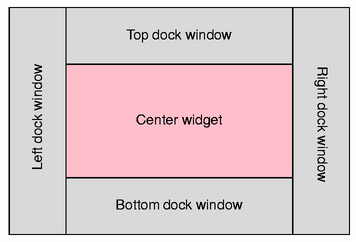
Once all of the main window components have been set up, the central widget is created and installed by using code similar to the following:
QWidget *centralWidget = new QWidget(this);
setCentralWidget(centralWidget);
中心 Widget 可以是任何子類化的 QWidget .
