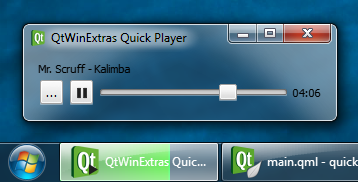
Quick 播放器範例演示如何使用各種提供特徵通過 QtWinExtras 模塊在 Qt Quick。
注意: 範例是基於 Qt Quick 的簡化版本的 音樂播放器 範例。
The example uses Windows DWM (Desktop Window Manager) features to visually integrate the window content to the window frame and to make the window translucent and blurred.
The example applies a different look based on whether composition is enabled or not. When composition is enabled, the window is made translucent and the window frame is extended to the client area to make the window content integrate seamlessly to the window frame as shown above.
Win.DwmFeatures {
    id: dwm
    topGlassMargin: -1
    leftGlassMargin: -1
    rightGlassMargin: -1
    bottomGlassMargin: -1
}
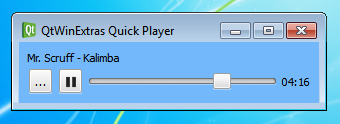
When composition is disabled, the colorization color is used as a background color for the window.
color: dwm.compositionEnabled ? "transparent" : dwm.realColorizationColor
The following screenshot illustrates how the Quick Player example looks when composition is disabled.
範例使用 Windows 任務欄為 2 件事;設置錶示當前音樂迴放狀態的疊加圖標,和在任務欄按鈕指示迴放進度。

The following snippet shows how the taskbar button is prepared. The taskbar progress indicator and the overlay icon are bound to the music playback, and will automatically change whenever the state or attributes of the music playback change.
Win.TaskbarButton {
    id: taskbar
    progress.value: mediaPlayer.position
    progress.maximum: mediaPlayer.duration
    progress.visible: mediaPlayer.hasAudio
    progress.paused: mediaPlayer.playbackState === MediaPlayer.PausedState
    overlay.iconSource: mediaPlayer.playbackState === MediaPlayer.PlayingState ? "qrc:/play-32.png" :
                        mediaPlayer.playbackState === MediaPlayer.PausedState ? "qrc:/pause-32.png" : "qrc:/stop-32.png"
}
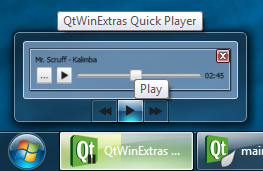
The Windows Thumbnail Toolbar is used for providing basic music playback controls. These controls can be used to control the application without having to activate the application. The thumbnail toolbar buttons are bound to the music playback, and will automatically change whenever the state or attributes of the music playback changes.
Win.ThumbnailToolBar {
    id: thumbbar
    Win.ThumbnailToolButton {
        tooltip: qsTr("Rewind")
        iconSource: "qrc:/backward-32.png"
        enabled: mediaPlayer.position > 0
        onClicked: mediaPlayer.seek(mediaPlayer.position - mediaPlayer.duration / 10)
    }
    Win.ThumbnailToolButton {
        tooltip: mediaPlayer.playbackState === MediaPlayer.PlayingState ? qsTr("Pause") : qsTr("Play")
        iconSource: mediaPlayer.playbackState === MediaPlayer.PlayingState ? "qrc:/pause-32.png" : "qrc:/play-32.png"
        enabled: mediaPlayer.hasAudio
        onClicked: mediaPlayer.playbackState === MediaPlayer.PlayingState ? mediaPlayer.pause() : mediaPlayer.play()
    }
    Win.ThumbnailToolButton {
        tooltip: qsTr("Fast forward")
        iconSource: "qrc:/forward-32.png"
        enabled: mediaPlayer.position < mediaPlayer.duration
        onClicked: mediaPlayer.seek(mediaPlayer.position + mediaPlayer.duration / 10)
    }
}
文件:
圖像:



