Qt Windows Extras 提供使您能夠使用各種 Windows 特定函數的類和函數。例如:可以將 Qt 對象轉換成 Windows 對象句柄和操縱 DWM (桌麵窗口管理器) 玻璃框。
此外,可以使用 Windows 7 引入的特徵,譬如 Aero Peek、跳轉列錶、任務欄按鈕進度指示器或縮略工具欄。
The QtWin 名稱空間提供函數來轉換 Qt 類對象,譬如 QPixmap or QImage 成 Windows HBITMAP 或 HICON 句柄,反之亦然。
可以確定窗口是否包括在 DWM (桌麵窗口管理器) Flip3D 渲染中。
The glass frame that was first introduced with Windows Vista can be easily manipulated using the QtWin::extendFrameIntoClientArea() and QtWin::enableBlurBehindWindow() functions. Windows 8 lost the glass effect, but applications can still integrate their windows into the system frame to visually separate window controls from the rest of the window or to focus the user's attention on window content.

Windows 7 Aero Peek feature gives the users the powers of X-ray vision that enable them to peek past all open windows straight at the desktop and the gadgets placed there. They can view the contents of a window without actually switching to it. You can enable Aero Peek for a gadget-like window or for a window that constantly displays monitoring data.
You can use the QtWin::setWindowExcludedFromPeek() function to exclude an application window from Aero Peek.
注意: 默認情況下,Aero Peek 在 Windows 8 中是被禁用的,但用戶可以啓用。

The taskbar provides users with access to applications that are open on the desktop. Windows automatically creates buttons on the taskbar for accessing application windows. Windows 7 adds new features to the taskbar buttons that are discussed in the following sections.
You can use the QWinTaskbarButton class to set an overlay icon and the QWinTaskbarProgress class to display a progress indicator on a taskbar button. An overlay icon indicates change in the state of the application. A progress indicator shows how time-consuming tasks are progressing.
The following example code illustrates how to use the QWinTaskbarButton and QWinTaskbarProgress classes to adjust the look of the taskbar button:
    QWinTaskbarButton *button = new QWinTaskbarButton(widget);
    button->setWindow(widget->windowHandle());
    button->setOverlayIcon(QIcon(":/loading.png"));
    QWinTaskbarProgress *progress = button->progress();
    progress->setVisible(true);
    progress->setValue(50);
應用程序可以使用跳轉列錶為用戶提供對文件的更快訪問,或顯示任務或命令的快捷方式。

注意: To be able to add destinations to its Jump Lists, the application should associate itself with the file types it can handle.
The following example code illustrates how to use the classes in the QWinJumpList and QWinJumpListItem classes to implement Jump Lists:
    QWinJumpList jumplist;
    QWinJumpListCategory *tasks = jumplist.tasks();
    QWinJumpListItem *newProject = new QWinJumpListItem(QWinJumpListItem::Link);
    newProject->setTitle(tr("Create new project"));
    newProject->setFilePath(QDir::toNativeSeparators(QCoreApplication::applicationFilePath()));
    newProject->setArguments(QStringList("--new-project"));
    tasks->addItem(newProject);
    tasks->addLink(tr("Launch SDK Manager"), QDir::toNativeSeparators(QCoreApplication::applicationDirPath()) + "\\sdk-manager.exe");
    tasks->setVisible(true);
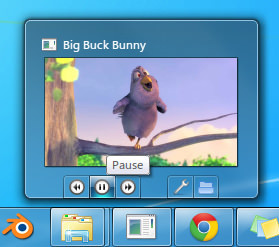
Applications can embed a toolbar in the thumbnail of a window, which is shown when hovering over its taskbar icon. A thumbnail toolbar may provide quick access to the window's commands without requiring the user to restore or activate the window.
The following example code illustrates how to use the functions in the QWinThumbnailToolBar and QWinThumbnailToolButton class to implement a thumbnail toolbar:
    QWinThumbnailToolBar *thumbbar = new QWinThumbnailToolBar(widget);
    thumbbar->setWindow(widget->windowHandle());
    QWinThumbnailToolButton *settings = new QWinThumbnailToolButton(thumbbar);
    settings->setToolTip("Settings");
    settings->setIcon(":/settings.png");
    settings->setDismissOnClick(true);
    connect(settings, SIGNAL(clicked()), settingsPage, SLOT(show()));
    QWinThumbnailToolButton *playPause = new QWinThumbnailToolButton(thumbbar);
    playPause->setToolTip("Play/Pause");
    playPause->setIcon(":/play.png");
    connect(playPause, SIGNAL(clicked()), mediaPlayer, SLOT(play()));
    thumbbar->addButton(settings);
    thumbbar->addButton(playPause);